Yack virtual office
a virtual office for teams that collaborate spontaneously
ask @Yack for insight rooted in your teamwork
What does Yack set out to tackle?
Barriers to talking – Even where a chat tool offers a one-click call, the call is a separate thing that someone starts and others have to notice and join. Sharing a eureka moment or bouncing an idea off a creative colleague are not organic as they are when you share a physical space.
Knowing who's around – A green dot says someone is online, not whether they're in a conversation, out of office or heads-down.
Choosing between noise and isolation – You're either following every conversation or you've muted things and might miss stuff that matters.
Exposed personal information – That nagging worry that this bot or that organisation can access your data.
Distraction – In-app purchases, ads and games make it harder to focus.
Insight from chatter – Who has time to watch full recordings or scroll through weeks of messages to remember who said what about that thing that's now pressing?
What is Yack?
Yack is a fast-loading Progressive Web App that runs in the browser on your desktop and mobile. It can be installed on your desktop or taskbar, but there's no native mobile app, and updates are a central responsibility.
How Yack works
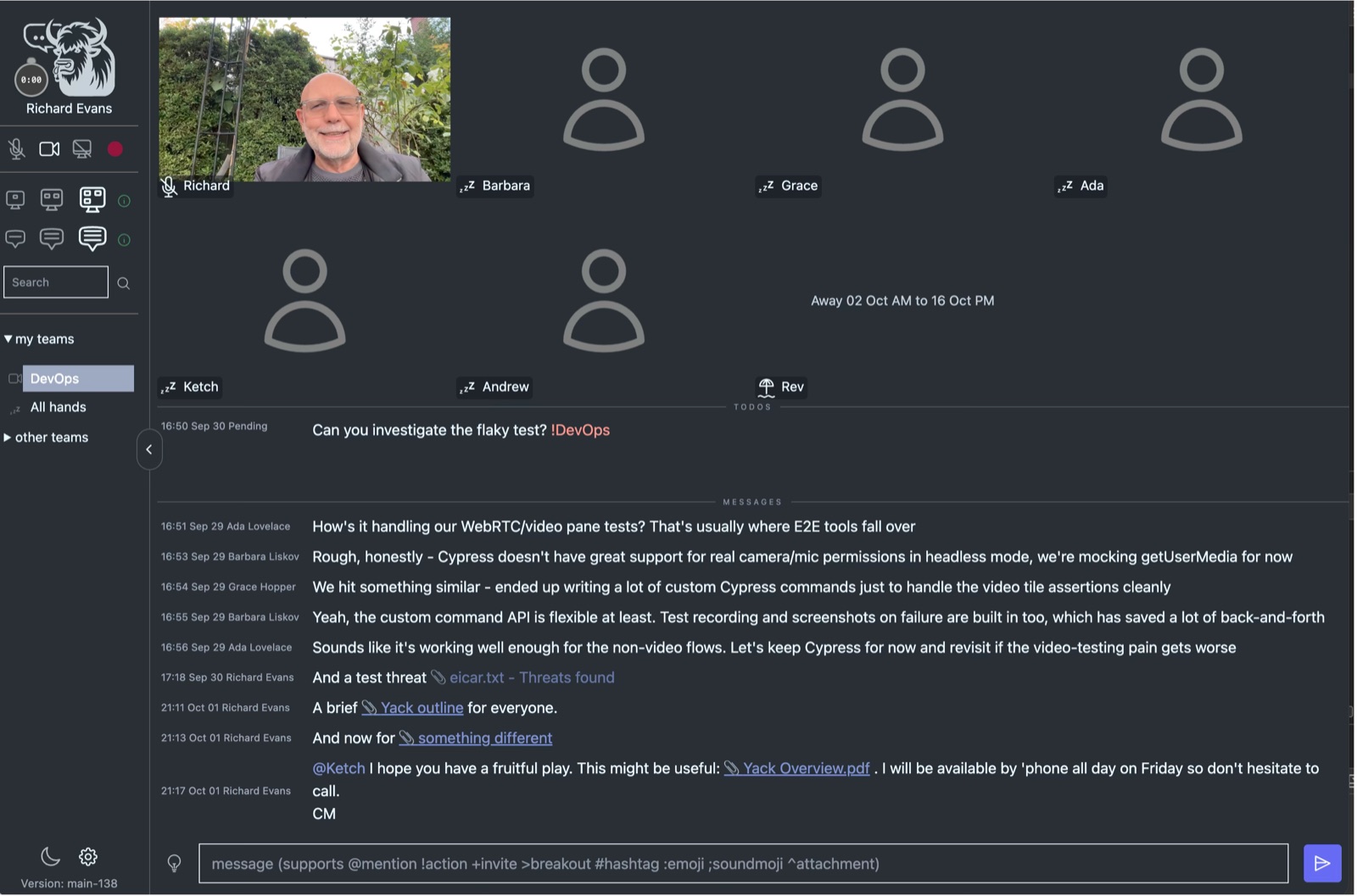
Yack is built around teams and their rooms. You are always in a room and, by default, it's your core team's room.
| Team type | What it's for | How long it lasts |
|---|---|---|
| Core team | Your home team. Everyone belongs to exactly one. | Permanent |
| Task team | A project or working group. | Until archived |
| All Hands | Everyone in the organisation | Permanent |
| Breakout | A quick side conversation with chosen people | Until the room empties |
Room screen
The main screen has three stacked panes, and you can resize them by dragging:
- Video. A tile for every member of the team. Each tile shows whether that person is in the room, out of office, asking that you do-not-disturb, or has their microphone or camera on.
- Todos. Open actions addressed to you or your teams. This list is meant to be short.
- Messages. The team's conversation, with the message box at the bottom.
Sidebar
A sidebar lists your organisation's rooms.
First are your rooms: your core team, any number of task teams in which you participate, and All Hands. You can jump from one to another with a click.
Then come other teams in the organisation. Each has a door policy, set by an administrator:
- Open. Visitors can walk in, even during a meeting.
- Knock. Visitors can ask to be admitted, and a member admits or declines them.
- Locked. Only for members and those explicitly invited, with one-time, short-lived invitations.
Visitors do not see the room's chat.
Messages
Type a message, send it, and it will be seen by those in your current room (except visitors). That's the basic functionality.
The message box can do more, though. Typing a shortcut character triggers a range of behaviours, and a handy menu of shortcuts helps until they become second nature.
| Shortcut | What it does |
|---|---|
| @recipient | Addresses a person or team instead of the current room |
| !actionee | Turns your message into a todo for a person or team |
| +invitee | Invites someone to join you in this room, even if it's locked |
| >breakout-invitee | Opens a new breakout room and invites them to it |
| #tag | Labels the message so it can be filtered later |
| ^attach | Attaches a document for others to see after a threat scan |
| :emoji | Inserts an emoji |
| ;sound | Attaches a short sound that plays when the message arrives |
| @Yack | Addresses a question to an AI chatbot; Yack bundles relevant, pseudonymised context automatically |
You can…
- edit your own messages for 15 minutes after sending;
- reply or react to an incoming message;
- search by words, "quoted phrases" and #tags, combined using and and or;
- scroll back through the full history (subject only to the retention interval, 7 years by default).
Todos
A todo is an ordinary message with a status: pending, in progress or completed. It stays in the todo pane until completed, and in the message history for good. Any recipient can claim it, and whoever holds it marks it done. Todos are not affected by your search.
Yack isn't a project-management tool: there are no due dates, boards or sub-tasks. Todos are for the "can someone…" requests that usually get lost in chatter, and for sticky "standing orders".
Attention
Yack gives each person two dials: Message level and Video level.
| Message level | You see | |
|---|---|---|
 |
Focus | Only messages addressed directly to you (DM) |
 |
Room | Messages to you and to the room you're in |
 |
Engaged | Messages to you and to any team you belong to |
| Video level | You see | |
|---|---|---|
 |
Active | Only people with a microphone or camera on |
 |
Present | Everyone currently in the room |
 |
All | All team members, present or not, plus visitors from other rooms |
There is also a Do not disturb button for when you really need to get your head down or are on the phone to someone. It turns off your microphone and camera, stops incoming audio and video, and switches your message level to Focus. Turning it off restores your previous message level and incoming streams. Your own microphone and camera stay off until you choose to turn them on.
Out of office
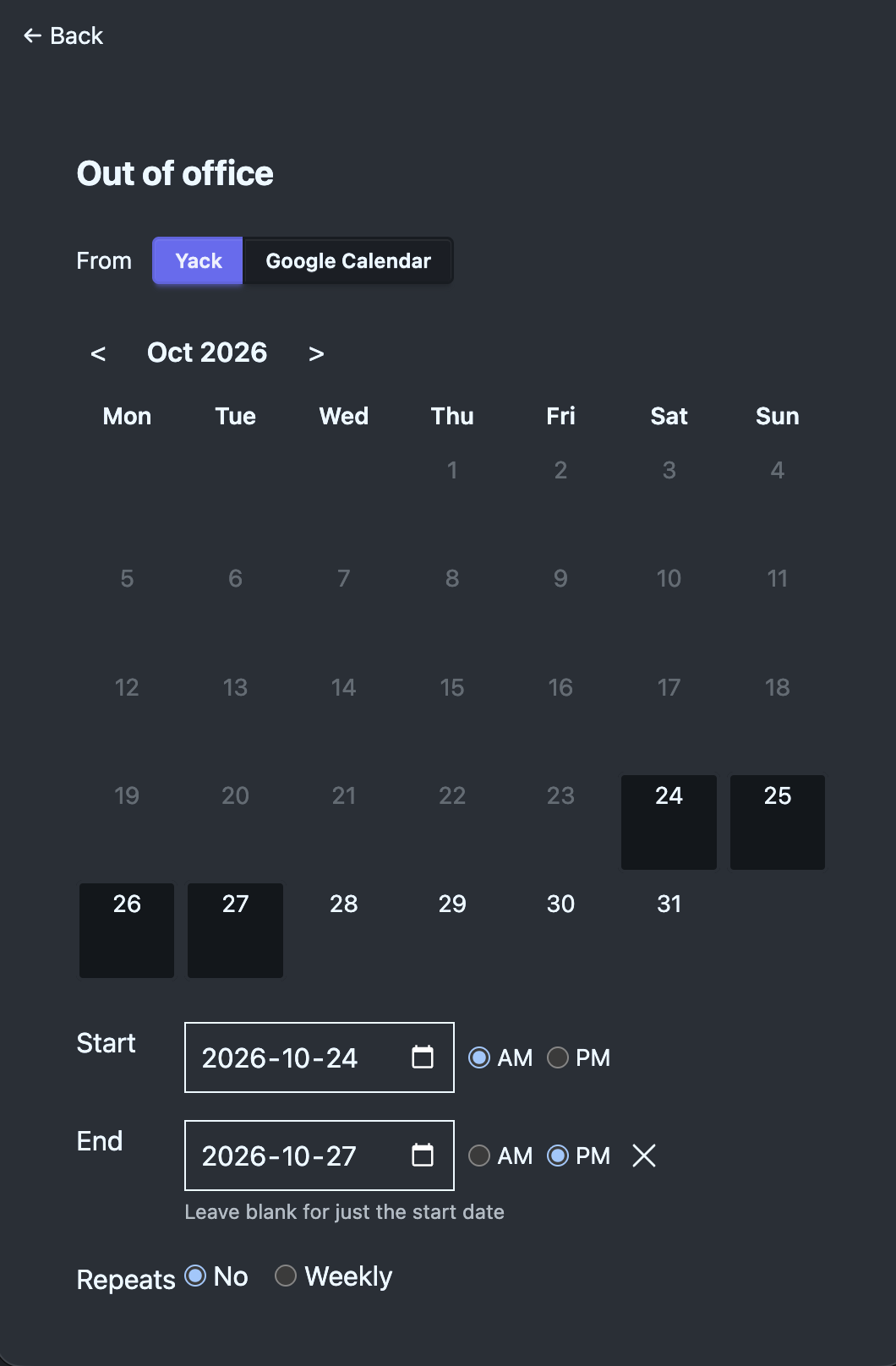
You can record your own time out of office, including half-days and repeating patterns like four-day weeks, in a simple calendar.
It is not intended to replace HR systems, but it's very easy to set up and it makes the information available where and when it's needed:
- Colleagues aren't left wondering whether to wait for you to join a meeting.
- They know that they should look for someone else to send that urgent request.
If you already keep your out of office in Google Calendar, you can have Yack follow it instead: connect your calendar once, and your out-of-office events appear in Yack, kept up to date as you change them. Yack reads only their times, never what they say.
Meetings
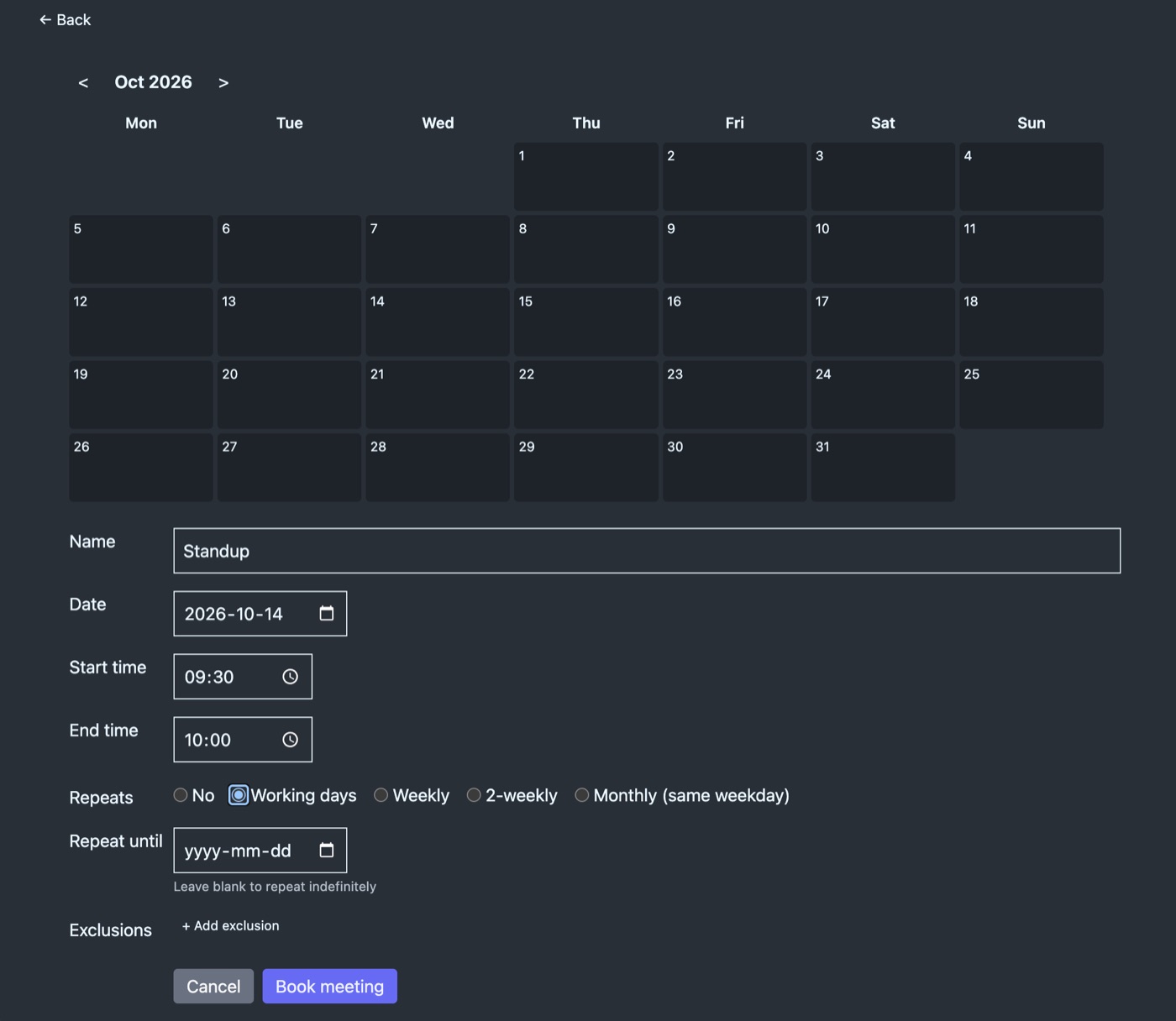
Useful for those recurring meetings, such as stand-ups: Yack sends you a convenient reminder with a link to the right room. Also a boon for those who are deep in thought when their one-to-one with the boss is due!
Presence
Yack tracks presence in detail and shows it in your room and on the pickers you use to address your messages.
| Presence | What it means | |
|---|---|---|
 |
Active | Microphone on, contributing |
 |
Muted | Microphone off |
 |
At the door | Has not clicked Join, or awaiting admission after a knock |
 |
In another room | Elsewhere in Yack |
 |
Do not disturb | Only reachable by DM in an emergency |
 |
Away | Not using Yack (though may receive notifications) |
 |
Out of office | On planned leave or otherwise out |
Codes of conduct
These are decisions for your team to make, rather than any enforced by Yack. We suggest that teams discuss preferred behaviours soon after adopting Yack and set some ground rules, such as:
- Install Yack on the taskbar (in Safari: Share › Add to Dock) and set it to open at login, so that Yack is always on;
- Be considerate with voice (though there is a Get a room button that drops an anonymous hint);
- Keep meetings short (though there is a timer that blushes as meetings drag on).
Insight
Meeting transcripts
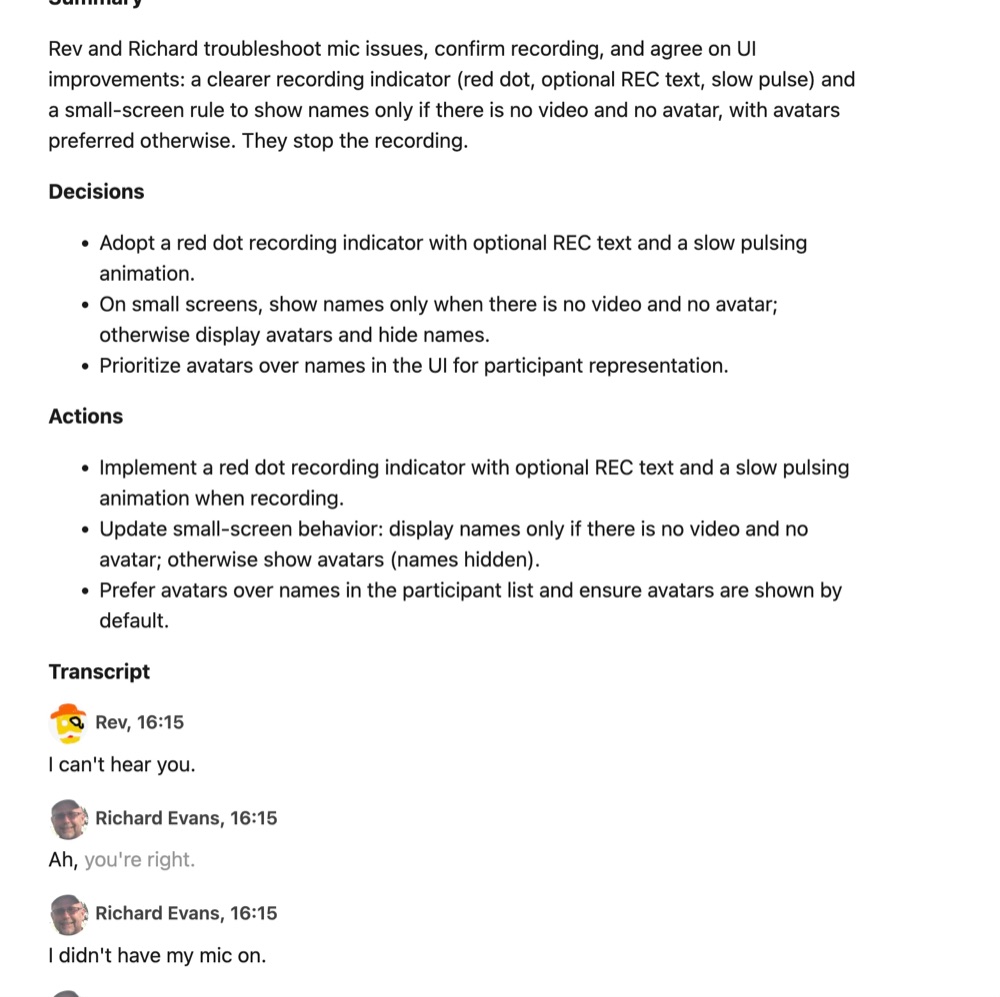
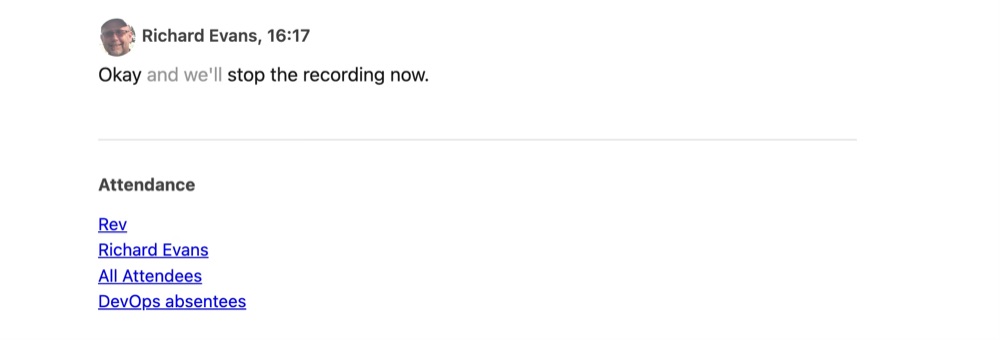
Any meeting can be recorded. Yack uses WhisperX (the small model, running on your infrastructure by default) to process audio and present a timestamped transcript, with entries attributed to speakers. At the foot of the transcript, Yack adds mailto links to attendees and absentees.
Meeting digests
Yack can be configured to preface the transcript with a summary, decisions and actions. The summary is created by sending a pseudonymised transcript to a third-party AI service (currently OpenAI) and then re-personalising the response.
Ask @Yack
When you address a message to someone outside your room, you use @user or @team. Amongst the users lurks a special one: @Yack.
You can send a message to a large language model (OpenAI gpt-5-nano by default) without having to set the scene yourself, as Yack automatically packages relevant context, pseudonymised, with your question. @Yack's insight will grow in future.
Embeddings (relevance)
Yack works in the background to collate messages and transcripts into chunks, which it sends to an AI model (BGE-M3, on your infrastructure by default) to obtain an embedding vector representing each chunk's subject matter. The chunks and their vectors are stored as "embeddings" in Yack's MongoDB database.
Before a question is sent to AI, Yack generates an embedding vector for the question and uses it to find the history most closely aligned to the question's subject. That history and recent messages are combined, pseudonymised and packaged with the question for the AI provider.
PII substitutions (pseudonymisation)
Before sending data to an external AI, Yack pseudonymises it, with two tools:
- GLiNER is a small local AI model that finds people's names, street addresses and ID numbers in text, so it can tell that "Richard Evans" is a person even though no rule could spot that.
- Presidio passes the text to GLiNER and also applies its own fixed rules for things with a known format, like phone numbers and email addresses. It then combines everything found, each with a confidence score.
Yack itself swaps each piece of PII for a placeholder such as person-1 or address-2, keeping a consistent mapping for each value. The response is parsed and the pseudonymisation reversed.
Excerpt from a transcript
Yack alongside Slack, Teams and similar tools
Yack has a different slant to established chat tools. They have far broader features and many years of use. Yack has a narrower goal: making a team's working day feel more like sharing a room.
Some areas where Yack's approach diverges
| Typical chat tool | Yack | |
|---|---|---|
| Basic unit | A channel: a stream of messages you follow | A room: a place you're in, with the people in it |
| Voice and video | A call started within a channel, which others join | The room itself: turn on your mic and people in the room hear you |
| Who's around | Online, away or a custom status | Who's in this room, who's talking, who's in do-not-disturb, who's out of office |
| Visitors | Channel membership | A door policy: open, knock or locked |
| Small actions | Usually a separate tool or add-on | Built in: !recipient makes any message a todo |
| Managing attention | Muting and notification settings per channel | Three message levels and do-not-disturb, visible to colleagues |
| Team meetings | A calendar invite with a call link | A time the team meets in its own room, with a join link in the reminder |
Where Yack doesn't compete
- Integrations. There's no app directory, bots, webhooks or public API.
- Reach. There are no shared channels with other organisations, and no external visitors.
- Apps. Yack runs in the browser; there are no native desktop or mobile apps.
Yack aims to remain simpler and more affordable.
Using both
A realistic first step is a single team trying Yack for its working day. External conversations and integrations stay in the tools already in place. If the room model doesn't suit the team, very little has to be undone.
Technology, hosting and data
Authentication
Users sign in with Google accounts (personal or Workspace), Microsoft accounts (personal, work or school), or both, as the installation chooses.
Roles
| Role | What it does |
|---|---|
| Superadmin | Creates teams; creates users with any role |
| Admin | Amends and assigns users to their own teams; creates users without administrative roles |
| User | No authority to administer users or teams |
Administration
Administrators create users and can disable them. When a user is disabled, any active sessions are ended immediately.
Data protection basics
- All traffic uses HTTPS, with strict transport security and modern TLS ciphers.
- A content security policy and standard browser protections against framing and content sniffing.
- All incoming text is sanitised before storage.
- Attachments are checked for threats before they can be downloaded.
- Data is stored on your own infrastructure.
- The AI features send only meeting summaries and @Yack context, stripped of PII.
- Google Calendar sync, where people choose it, reads only out-of-office times, with each person's consent.
Every installation publishes Yack's Privacy policy and Terms of service, written for the organisation that runs it; you can use them as they are or link your own.
Data retention
Retention intervals are configurable by class. Backups are kept for an extra fortnight.
| Data class | Default retention |
|---|---|
| Temporary recording files | 3 days |
| Recordings | 30 days |
| Attachments | 30 days |
| Messages, transcripts, embeddings and other data with PII | 7 years |
| Other data without PII | 7 years |
Quality
Yack has a comprehensive unit test suite and a browser-driven integration suite covering presence, media controls, messaging, settings and calendars.
Security testing
Every change is checked automatically, and a test installation was attacked with standard tools (October 2026).
| Tool | Purpose | Findings |
|---|---|---|
| Sobelow | Static analysis of Yack's code for web vulnerabilities, on every change | None outstanding |
| Hex and npm audits | Third-party libraries checked for published vulnerabilities, on every change | Three libraries upgraded; none outstanding |
| OWASP ZAP | Crawls Yack signed in, then attacks it: injection, cross-site scripting, path traversal | No injection, scripting or traversal weaknesses. Browser security headers tightened |
| Nuclei | Over 11,000 checks for known misconfigurations and exposures | Nothing of concern |
| testssl.sh | Encryption of connections | Grade A+, including post-quantum key exchange |
Topologies
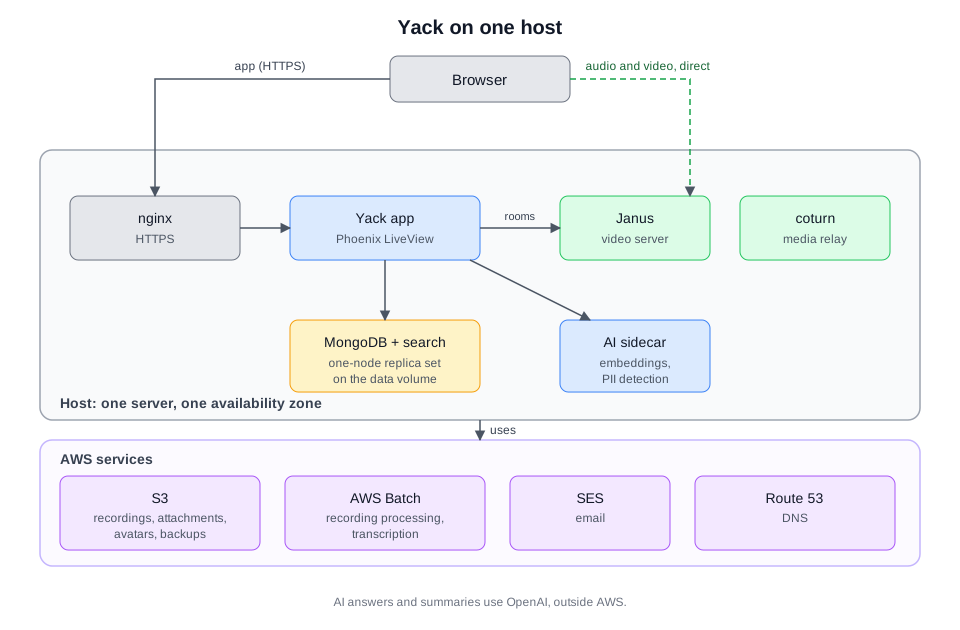
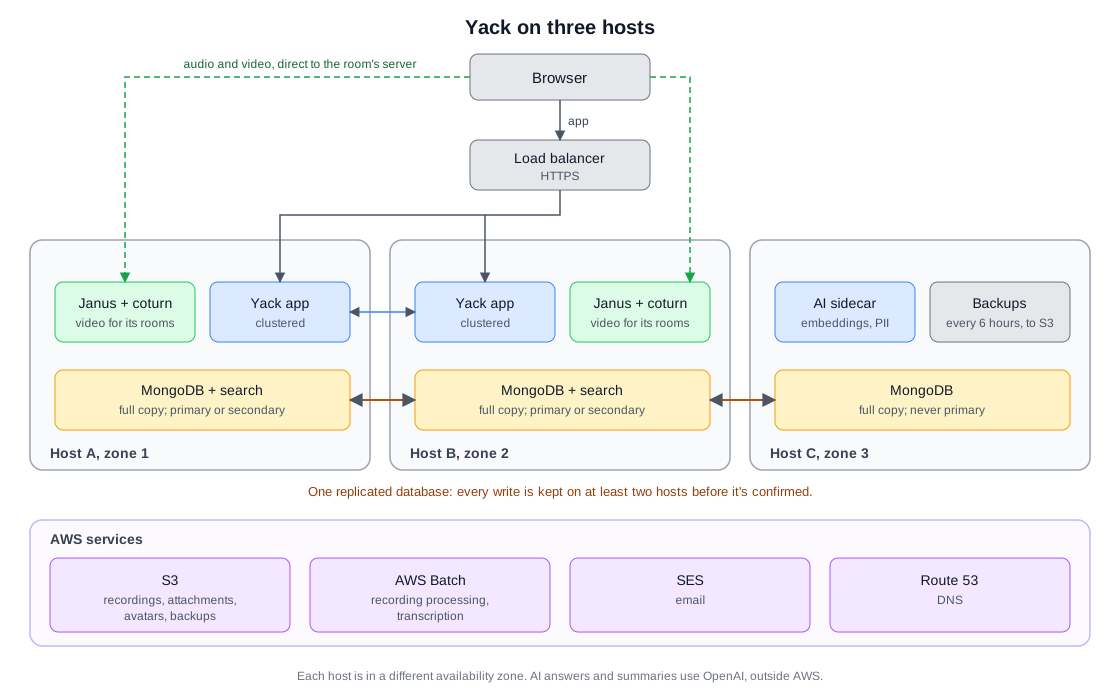
Yack runs in one of two configurations: one host, or three hosts in separate availability zones. Both are defined in code (AWS Cloud Development Kit and CloudFormation). Both keep files in Amazon S3 and back up the database to S3 in the same way.
Data backup
- Recordings, transcripts, attachments and avatars are stored in Amazon S3, built to keep data through the loss of whole data centres.
- Backups are taken every six hours: the whole database is copied, as one consistent snapshot, to a separate S3 bucket and kept for 14 days. The servers can add backups but cannot delete them, so a compromised server cannot erase them. Any backup can be restored into a throwaway database to check it.
- With three hosts, the database is replicated on all three, and a change counts as saved only once it is on at least two of them.
Recovering from loss of a server
With one host, the server restarts its services after most faults. If the server itself fails, Yack is unavailable until it is restarted or replaced (minutes to an hour). The database sits on its own encrypted disk; only if that disk were also lost would Yack fall back to the latest backup, losing at most the last six hours.
With three hosts, losing any one loses no saved data, and Yack keeps running:
- if an app server fails, the load balancer sends users to the other within about half a minute;
- the database chooses a new primary copy in about ten seconds;
- background jobs, such as reminders and clean-up, move to the surviving app server;
- calls on the failed host's video server drop and reconnect, and their rooms move to the other video server;
- a recording being captured on that host is lost; one already captured can be re-run once the host is back;
- if the non-app server fails, database backups pause until it is restored.
Recovering
- Restoring a backup: any backup from the last 14 days can replace the database; search is rebuilt in the background afterwards.
- Replacing a host: a new host is built from the same scripts. With three hosts it rejoins and copies the data from the other two.
- Rebuilding a deployment: the whole setup is defined in code, so it can be rebuilt from scratch: the servers created, the latest release deployed and the latest backup restored.
Limit: backups are kept in the same AWS region as Yack. A region-wide outage would mean waiting for the region to return.
Deploying Yack
First deployment
Yack comes with a tool, yack-provision, that runs in Docker. It provisions the AWS resources, then installs and configures the software.
In preparation, you will need to:
- Decide the deployment topology (one host or three), whether to use OpenAI, support access and so on
- Set up sign-in: a Google OAuth client, a Microsoft Entra app registration, or both
- Ensure you have an AWS account with a free VPC and cost tracking enabled
- Create an AWS provisioning user with the policy yack-provision prints for it
- Prepare a Route 53 hosted zone for your domain, and an EC2 key pair
You can reconfigure with the same tool after installation. All this is described in detail in the Yack Installation guide.
Upgrades
You choose an upgrade window, and upgrades are automated. With three hosts, many upgrades incur no outage. During your window, the automated process checks for a new release, downloads it, waits until nobody is on a call and no recording is in progress, backs up your data, and applies the upgrade or rolls back on failure. Your superadmins are told of each upgrade, and the Release notes say what each one brings. See details in the Upgrades section.
Support
Off unless you grant it. With one setting, you can give us read access to your CloudWatch logs and/or recorded command-line sessions on your hosts, until a date you choose. See Logs and support.
Trying Yack
The best way to judge Yack is to use it over a few weeks. We're looking for a small number of first teams to do exactly that. We'll help set it up and support you. We can even host the trial period if you prefer.
Good candidates:
- An organisation with a few small teams who work together most days, remotely or in a hybrid setup.
- Teams that sign in with Google or Microsoft and are happy to open an AWS account.
- Teams comfortable using a new tool alongside their existing chat, and willing to tell us plainly what works and what doesn't.
Start with one team
- We'll help you with setup.
- You can run it alongside your existing tools.
- Tell us what works, what doesn't and what you'd change.
Pricing
Early adopters will never be charged for using Yack software in one organisation. That's free for good, with upgrades. You'll only pay Amazon for hosting, and OpenAI for meeting summaries and @Yack.
We want to reward the confidence you are placing in us. We only ask for honest feedback and your permission to quote it.
We have not yet made firm decisions on our long-term pricing model, but we may charge in proportion to your AWS costs for hosting Yack, likely to start at around £100 a month. Not a worry for early adopters, of course.
Next step
Get in touch with the Yack Team: in Yack, the envelope beside the Overview link at the foot of the sidebar opens a form that reaches us, or send us a message from here. Or contact Richard Evans directly at richard.evans@thoughtbreak.com or on +44 7985 437517.